Cloud Chronicles
Practical articles on AWS architecture, migration, security, and AI tooling — written from the trenches of migrating Go3 OTT to AWS.
Your Terminal Knows Which AWS Account You’re In (And It Can Save You From Expensive Mistakes)

We’ve all been there. You’re knee-deep in a Terraform plan, confident you’re in UAT, and then you hit apply. Silence. Then the Slack message from your colleague: “Did you just nuke the production database?”
And here’s another scenario that’s becoming increasingly common: you ask GitHub Copilot to run a script for you, it opens a fresh terminal, and suddenly your AWS profile is gone, your virtual environment is deactivated, and Copilot is running commands in the wrong context — or failing silently because aws can’t find credentials. Every new terminal Copilot spawns is a blank slate, and if your environment setup lives only in your head (or in a README you have to follow manually), you’ll be fighting that context loss constantly.
No? Just me? Either way — this article is about making sure that never happens. We’re going to build a shell prompt that constantly reminds you which AWS account and region you’re working in, auto-activates your Python virtual environments, and even switches AWS profiles automatically when you cd into the right project. All of this without slowing your terminal down.
By the end, your prompt will look like this:
~/git/your-repo/environments/uat feat/branch-name* dev@aws-account-name-uat @eu-north-1
.venv ❯
But with colors… and that little dev@aws-account-name-uat @eu-north-1 is your safety net.
What We’re Building
Here’s the big picture of what happens every time you open a terminal or cd into a directory:
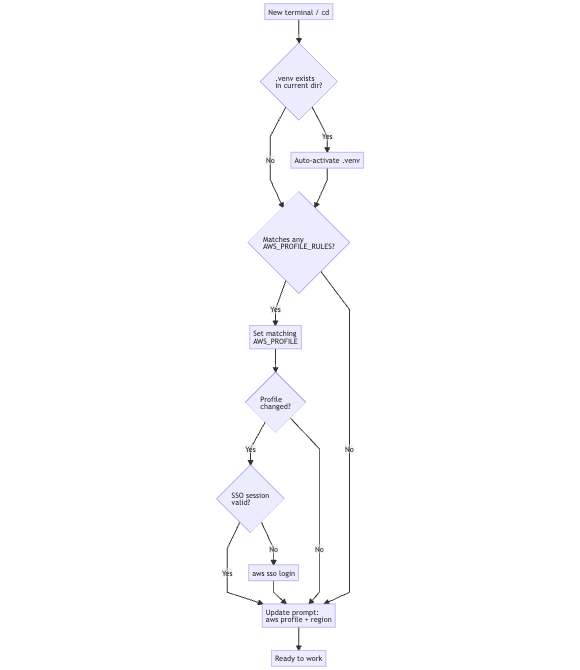
Three problems, solved in one hook.
Prerequisites
- macOS with Homebrew (or Linux with your preferred package manager, but I haven’t tested this setup on Linux)
- zsh as your shell (default on macOS since Catalina)
- AWS CLI v2 installed and configured
- AWS SSO set up (see article in this series 02. Using VSCode for CLI and Python tasks on AWS - part 2 if you haven’t done this yet)
- A coffee ☕️. This is a multi-file setup.
Step 1: Pick a Prompt — Meet Pure
The foundation of a great terminal experience on zsh is Pure — a minimal, fast, and async prompt by Sindre Sorhus. It shows your path, git branch, dirty status, and execution time out of the box. We’ll extend it with AWS awareness.
The easiest way to get Pure is through SlimZSH, which bundles it with sane defaults:
git clone --recursive https://github.com/changs/slimzsh.git ~/.slimzsh
Then add this to the top of your ~/.zshrc:
source "$HOME/.slimzsh/slim.zsh"
Restart your terminal. You should now have a clean, minimal prompt. This is your canvas.
Step 2: Fix VS Code Terminal Integration (Don’t Skip This)
If you’re using VS Code’s integrated terminal — and you probably are — there’s a known gotcha. If your prompt makes subprocess calls (like calling aws configure get region on every render), VS Code’s shell integration breaks. Agent-based tools, tasks, and terminal output parsing all start misbehaving.
The fix is simple: wrap anything that modifies the prompt in a VS Code guard.
In ~/.zprofile, set your default AWS environment variables at the top:
export AWS_PROFILE=Admin@Bootcamp
export AWS_REGION=us-east-1
export AWS_DEFAULT_REGION=us-east-1
Then wrap anything, which is modyfying the prompt (like RPROMPT), in this check:
if [[ "$TERM_PROGRAM" != "vscode" ]]; then
  setopt PROMPT_SUBST
  # ... RPROMPT setup here (for iTerm2/Terminal.app)
  export RPROMPT='$(print_aws_profile)'
else
  export RPROMPT=''
fi
If you are not yet applying prompt customization, you’ll notice your ~/.zshrc already has this pattern for iTerm2 shell integration:
if [[ "$TERM_PROGRAM" != "vscode" ]]; then
  test -e "${HOME}/.iterm2_shell_integration.zsh" && source "${HOME}/.iterm2_shell_integration.zsh"
fi
Same idea. Keep VS Code happy.
Step 3: Embed AWS Info Directly in the Pure Prompt
Instead of using RPROMPT and similar solutions (which bleeds into terminal output and causes the VS Code issues above), we inject AWS info directly into Pure’s first-line prompt — right before the execution time.
Open ~/.slimzsh/prompt_pure_setup and find the execution time line:
# Execution time.
[[ -n $prompt_pure_cmd_exec_time ]] && preprompt_parts+=('%F{$prompt_pure_colors[execution_time]}${prompt_pure_cmd_exec_time}%f')
Add these two lines before it:
# AWS profile / assumed role (set via $_pure_aws_info in .zshrc).
[[ -n $_pure_aws_info ]] && preprompt_parts+=('${_pure_aws_info}')

# Execution time.
[[ -n $prompt_pure_cmd_exec_time ]] && preprompt_parts+=('%F{$prompt_pure_colors[execution_time]}${prompt_pure_cmd_exec_time}%f')
That’s it for Pure. The $_pure_aws_info variable is a string we’ll manage from .zshrc — no subprocess, no delay.
Step 4: The AWS Prompt Hook
Now we wire it up. Add this to your ~/.zshrc:
function _update_aws_prompt() {
  if [[ -n "$ASSUMED_ROLE" ]]; then
    # Red for assumed roles — this is important to notice at a glance
    _pure_aws_info="%F{red}${ASSUMED_ROLE}%f"
  elif [[ -n "$AWS_PROFILE" ]]; then
    local region="${AWS_DEFAULT_REGION:-$AWS_REGION}"
    _pure_aws_info="%F{blue}${AWS_PROFILE}%f"
    [[ -n "$region" ]] && _pure_aws_info+=" %F{242}@${region}%f"
  else
    _pure_aws_info=""
  fi
}
add-zsh-hook precmd _update_aws_prompt
_update_aws_prompt  # Set on shell start
This runs on every prompt render but reads only environment variables — it never calls aws or any external process. Zero latency.
The result:
- Normal profile →
admin@dwh-prod @eu-north-1in blue - Assumed role → the full role ARN in red (hard to miss)
- No profile → nothing shown
Step 5: Auto-activate .venv and Switch AWS Profiles Per Project
Here’s where the setup becomes genuinely useful for day-to-day work. Instead of remembering to source .venv/bin/activate and aws-set-profile every time you open a project, let the shell do it.
The key is a configurable rule table. Each entry maps a path glob to an AWS profile, evaluated from top to bottom — first match wins, so put the most specific rules first:
# AWS profile rules — most specific patterns first, first match wins.
# Format: "glob-pattern:aws-profile"
# A rule matches if $PWD equals the pattern OR is a subdirectory of it.
# Glob characters (* ? []) are supported.
AWS_PROFILE_RULES=(
  "*/sf-infra-*/environments/prod:admin@dwh-prod-strict"
  "*/sf-infra-*:admin@dwh-prod"
  "*/your-repo/environments/prod:dev@aws-account-name-prod"
  "*/your-repo:dev@aws-account-name-uat"
  # "*/git:dev@sandbox"  # fallback for all projects under ~/git
)
Then add the resolver and the hook:
autoload -Uz add-zsh-hook

function _resolve_aws_profile() {
  local dir="$1"
  for rule in "${AWS_PROFILE_RULES[@]}"; do
    local pattern="${rule%%:*}"
    local profile="${rule##*:}"
    # ${~pattern} enables glob matching of the variable's value in [[ ]]
    if [[ "$dir" == ${~pattern} || "$dir" == ${~pattern}/* ]]; then
      echo "$profile"
      return 0
    fi
  done
  return 1  # no match — keep current profile
}

function _project_env() {
  # Auto-activate .venv if one exists in the current directory
  local venv="$PWD/.venv/bin/activate"
  if [[ -f "$venv" && "$VIRTUAL_ENV" != "$PWD/.venv" ]]; then
    export VIRTUAL_ENV_DISABLE_PROMPT=12  # Pure handles the venv display
    source "$venv"
    echo "Activated .venv: $PWD/.venv"
  fi

  # Auto-set AWS profile based on AWS_PROFILE_RULES
  local matched_profile
  matched_profile=$(_resolve_aws_profile "$PWD")
  if [[ -n "$matched_profile" && "$AWS_PROFILE" != "$matched_profile" ]]; then
    export AWS_PROFILE="$matched_profile"
    export AWS_REGION=$(aws configure get region 2>/dev/null)
    export AWS_DEFAULT_REGION="$AWS_REGION"
    echo "AWS profile set to $AWS_PROFILE @ $AWS_REGION"
    # SSO check only when the profile actually switches
    if ! aws sts get-caller-identity &>/dev/null; then
      echo "SSO session expired, logging in..."
      aws sso login
    fi
  fi
}

add-zsh-hook chpwd _project_env
_project_env  # Run on shell start
The chpwd hook fires every time you change directory. Combined with _project_env running at shell start, your environment is always consistent with your current project. The SSO check only runs when the profile actually changes — not on every cd — so there’s no latency hit.
A note on VIRTUAL_ENV_DISABLE_PROMPT=12 — without this, activating a venv would add (.venv) to your PS1, and Pure would also show .venv in the prompt, giving you a redundant double label. Setting this magic number tells the activate script to stand down and let Pure handle it.
How the rule matching works: zsh’s [[ string == $pattern ]] performs glob matching when the right-hand side is unquoted. The ${~pattern} syntax forces this glob interpretation even when the value comes from a variable. So */sf-infra-* correctly matches /Users/wojtek/git/tv3/sf-infra-core and everything inside it, while */sf-infra-*/environments/prod takes precedence because it’s listed first.
Step 6: The AWS Helper Functions
Put these in ~/.zprofile so they’re available in all shells. They wrap the AWS CLI commands you use most when working across multiple accounts.
Switch Profile and Log In
function aws-set-profile() {
  export AWS_PROFILE=$1
  export AWS_REGION=$(aws configure get region)
  export AWS_DEFAULT_REGION=$AWS_REGION
  echo "Switching profile to ${AWS_PROFILE} @ ${AWS_REGION}"
  aws sso login
}
Usage: aws-set-profile admin@dwh-prod
This switches your profile, picks up the configured region, and triggers SSO login. Use this when you need to manually switch between accounts.
Assume a Role
function aws-assume-role() {
  OUT=$(aws sts assume-role --role-arn $1 --role-session-name $2)
  export AWS_ACCESS_KEY_ID=$(echo $OUT | jq -r '.Credentials.AccessKeyId')
  export AWS_SECRET_ACCESS_KEY=$(echo $OUT | jq -r '.Credentials.SecretAccessKey')
  export AWS_SESSION_TOKEN=$(echo $OUT | jq -r '.Credentials.SessionToken')
  export ASSUMED_ROLE=$1
  aws sts get-caller-identity
}
Usage: aws-assume-role arn:aws:iam::123456789012:role/MyRole my-session
When ASSUMED_ROLE is set, your prompt turns red. This is intentional — assumed roles often have elevated permissions, and you want a constant visual reminder.
Return to Base Profile
function aws-return-role() {
  unset ASSUMED_ROLE AWS_ACCESS_KEY_ID AWS_SECRET_ACCESS_KEY AWS_SESSION_TOKEN
  aws sts get-caller-identity
}
Usage: aws-return-role
Clears the assumed role credentials and drops back to your base profile. Your prompt goes back to blue.
Putting It All Together
Here’s how the pieces fit across your shell config files:
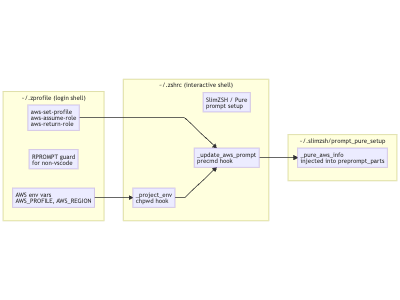
The flow: .zprofile sets defaults and tools → .zshrc reacts to directory changes and updates _pure_aws_info → Pure renders it in the prompt.
The Final Result
Open a new terminal in any sf-infra-* project directory:
~/git/tv3/sf-infra-core/environments/uat feat/svc_nexus_api_user* admin@dwh-prod @eu-north-1 3s
.venv ❯
Open one in snowflake-scripts:
~/git/tv3/snowflake-scripts master Admin@Bootcamp @us-east-1
.venv ❯
Assume a role:
~/git/tv3/sf-infra-core master arn:aws:iam::123456789012:role/MyRole
.venv ❯
The assumed role will be displayed in red. This red profile name is your “wait, double-check before you apply” moment. It’s saved more than a few Friday afternoons.
Bonus: It Plays Well With GitHub Copilot
If you use GitHub Copilot in VS Code — especially the agent mode — you’ve probably noticed that Copilot frequently opens a new terminal to run its commands. And every time it does, it starts completely fresh: no AWS profile, no region, and your Python virtual environment is nowhere to be seen.
This is actually where this setup earns its keep beyond just aesthetics. Because both .zprofile and .zshrc run on every new shell, Copilot’s terminal inherits everything automatically: the right AWS_PROFILE, the correct AWS_REGION, and if the project has a .venv, it gets activated immediately. The _project_env function fires on shell start (not just on cd), so even a brand-new terminal spawned mid-session lands in the right context. Copilot can run aws commands and Python scripts without you needing to manually set up the environment each time it decides to open a fresh shell.
Summary
| What | Where | Why |
|---|---|---|
| Default AWS env vars | ~/.zprofile |
Set once, available everywhere |
| VS Code guard for RPROMPT | ~/.zprofile |
Keeps terminal output clean |
aws-set-profile, aws-assume-role, aws-return-role |
~/.zprofile |
Reusable profile switching helpers |
_project_env chpwd hook |
~/.zshrc |
Auto-activates .venv and AWS profile per project |
_update_aws_prompt precmd hook |
~/.zshrc |
Updates _pure_aws_info on every prompt, zero subprocess calls |
_pure_aws_info injection |
~/.slimzsh/prompt_pure_setup |
Renders AWS info inside Pure’s first line |
The whole setup is about 50 lines of shell script spread across three files. In return, you get a terminal that knows where it is and tells you about it — loudly, in colour, every single time.
Stay safe out there. And always check the prompt before you terraform apply.